> ## Documentation Index
> Fetch the complete documentation index at: https://docs.wowagent.ai/llms.txt
> Use this file to discover all available pages before exploring further.
# 3D Avatar Shareable Link: Share Your AI Assistant Publicly
> Share one stable public URL where visitors talk to your WOWagent AI assistant through a full-screen 3D avatar using text or voice conversation.
The 3D Avatar Shareable Link gives your website one public URL where visitors can talk directly to your WOWagent AI assistant through an interactive 3D avatar. Share it on social media, in emails, or as a QR code. The link stays the same even when you change the avatar.
 ## What Visitors Get
The shared page opens a full-screen 3D avatar that supports:
* Text conversation.
* Voice conversation.
* Automatic voice-session startup.
* Your configured assistant greeting.
* Your currently selected 3D avatar.
* Your configured assistant voice and visual settings.
## Requirements
The shareable link is available when:
* The chatbot uses the **3D Avatar** widget layout.
* The website has a valid widget integration and site key.
* The interactive 3D Avatar feature is available on your plan.
* The public widget is enabled.
* The **3D Avatar Shareable Link** is not disabled in the **Integration Center**.
If your chatbot is not set to the **3D Avatar** layout, the **3D Avatar Shareable Link** tab stays unavailable.
## Public URL
Each website gets one stable URL based on its hostname:
```text theme={null}
https://portal.wowagent.ai/{website-slug}
```
For example, the website `agroj.ai` gets the slug `agroj-ai`. The URL loads whichever 3D avatar is currently selected, so changing the avatar never changes the link.
## Share Your Avatar Link
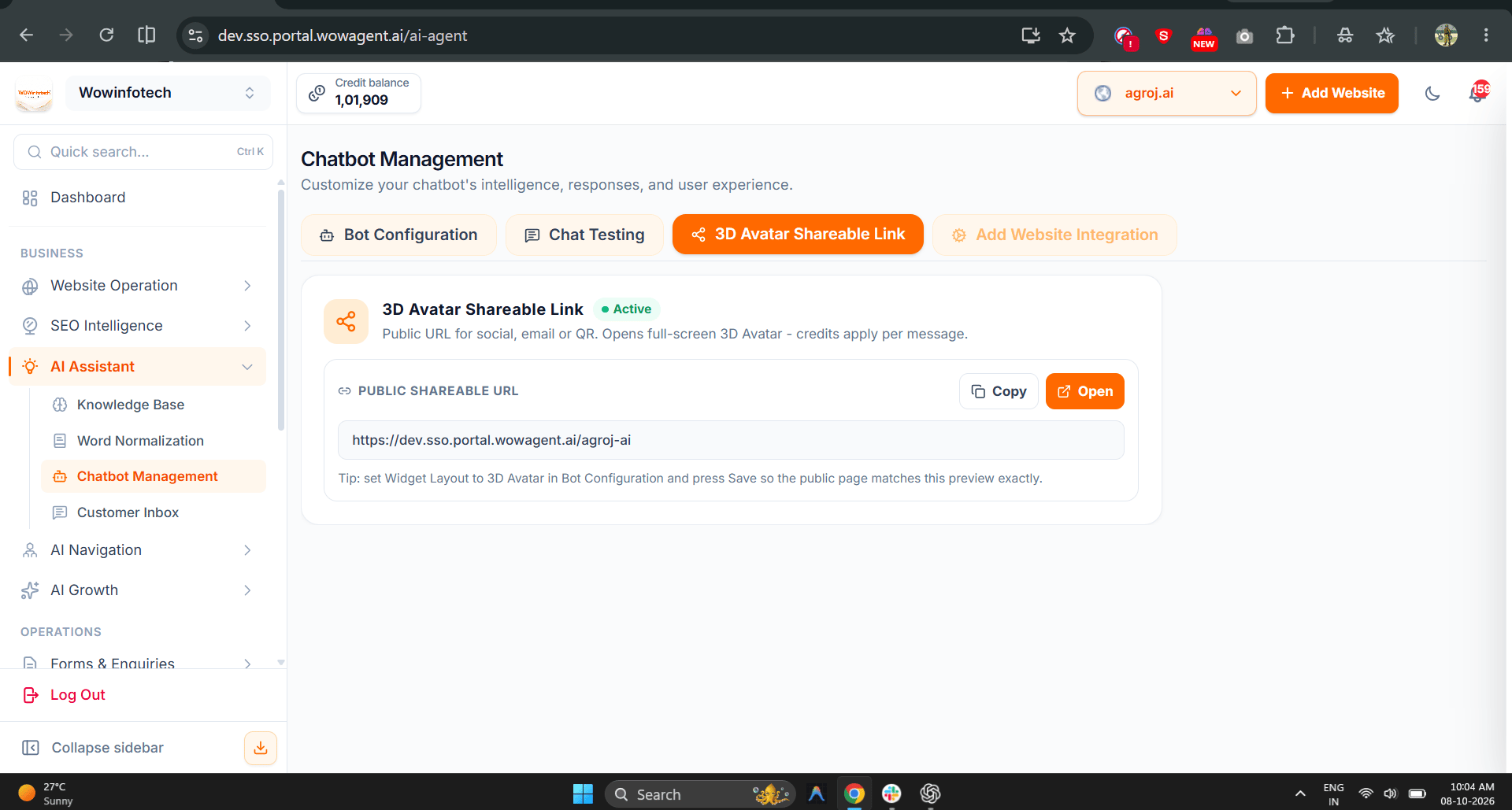
Go to **AI Assistant > Chatbot Management > Bot Configuration**, set **Widget Layout** to **3D Avatar**, and click **Save**.
Click the **3D Avatar Shareable Link** tab. The status badge shows **Active** when the link is live.
Under **Public Shareable URL**, click **Copy** to copy the link, or **Open** to view the public page in a new tab.
Paste the link into social posts, emails, or a QR code generator.
Save your changes in **Bot Configuration** before sharing, so the public page matches your preview exactly.
## Enable or Disable the Link
You turn the public link on or off from the **Integration Center**, where it is listed as **3D Avatar Shareable Link**.
## What Visitors Get
The shared page opens a full-screen 3D avatar that supports:
* Text conversation.
* Voice conversation.
* Automatic voice-session startup.
* Your configured assistant greeting.
* Your currently selected 3D avatar.
* Your configured assistant voice and visual settings.
## Requirements
The shareable link is available when:
* The chatbot uses the **3D Avatar** widget layout.
* The website has a valid widget integration and site key.
* The interactive 3D Avatar feature is available on your plan.
* The public widget is enabled.
* The **3D Avatar Shareable Link** is not disabled in the **Integration Center**.
If your chatbot is not set to the **3D Avatar** layout, the **3D Avatar Shareable Link** tab stays unavailable.
## Public URL
Each website gets one stable URL based on its hostname:
```text theme={null}
https://portal.wowagent.ai/{website-slug}
```
For example, the website `agroj.ai` gets the slug `agroj-ai`. The URL loads whichever 3D avatar is currently selected, so changing the avatar never changes the link.
## Share Your Avatar Link
Go to **AI Assistant > Chatbot Management > Bot Configuration**, set **Widget Layout** to **3D Avatar**, and click **Save**.
Click the **3D Avatar Shareable Link** tab. The status badge shows **Active** when the link is live.
Under **Public Shareable URL**, click **Copy** to copy the link, or **Open** to view the public page in a new tab.
Paste the link into social posts, emails, or a QR code generator.
Save your changes in **Bot Configuration** before sharing, so the public page matches your preview exactly.
## Enable or Disable the Link
You turn the public link on or off from the **Integration Center**, where it is listed as **3D Avatar Shareable Link**.
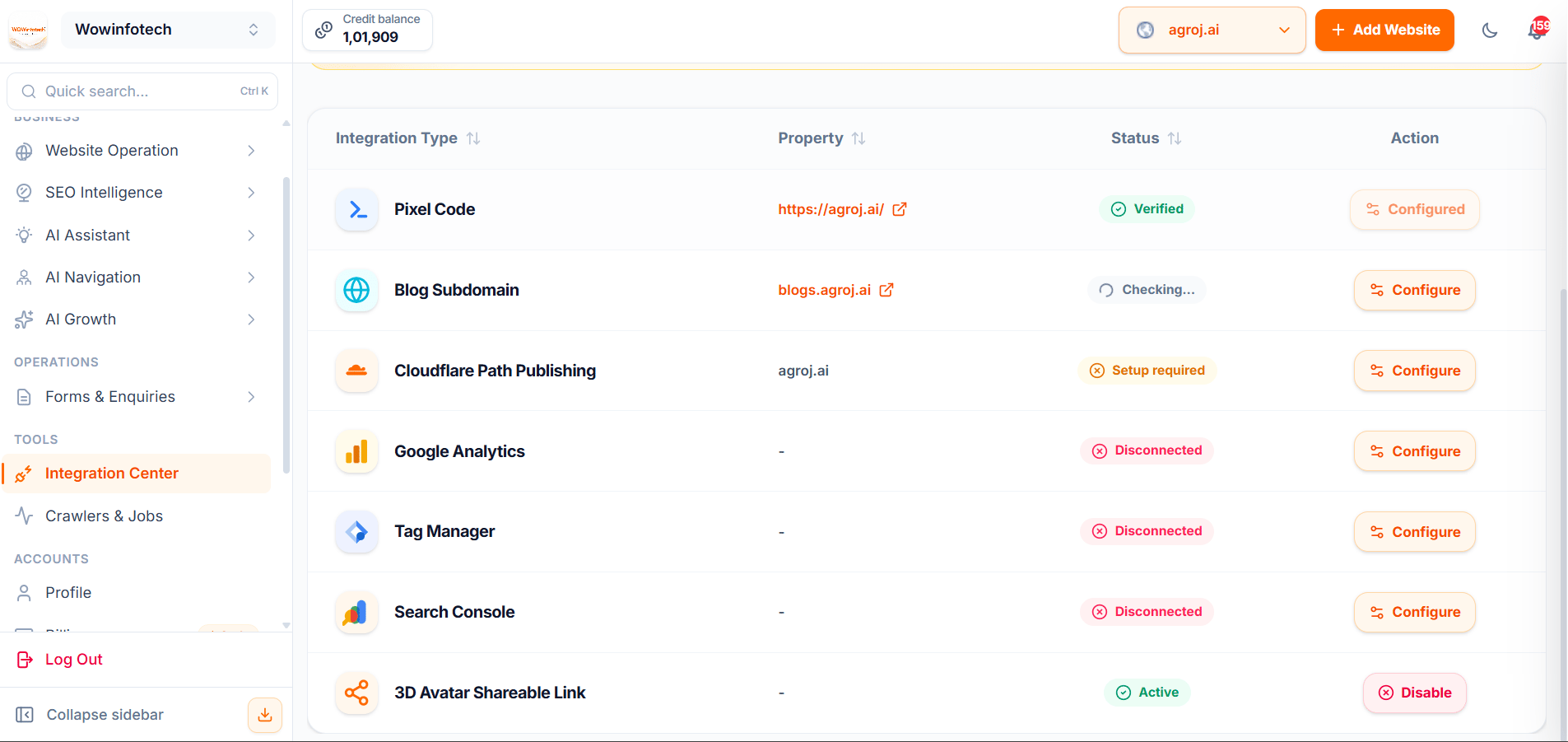 Select the correct website in the website switcher, then click **Integration Center** under **Tools** in the sidebar.
Scroll to the **3D Avatar Shareable Link** row. The **Status** column shows **Active** when the link is live.
Click **Disable** in the **Action** column to turn off the public link. To turn it back on, use the same row's action button.
Disabling the link only stops public access. The URL stays the same, so links you already shared work again once you re-enable it.
## Owner Controls
As the website owner, you can:
* Select the 3D Avatar layout.
* Select the active avatar.
* Configure avatar size and mobile size.
* Configure avatar framing.
* Configure voice and voice speed.
* Configure widget colors and visual settings.
* Enable or disable the public share link.
* Copy the public share URL.
## Important Notes
* The public URL is website-based and remains stable when the selected avatar changes.
* Disabling the link does not delete the URL. Re-enabling it makes the same URL available again.
* The shared avatar page does not automatically submit website forms.
* Each public session uses a short-lived signed token for security.
* The selected avatar and voice settings are loaded when the page opens. Visitors who already have the page open see new settings after they reload.
Public visitor conversations consume your website's credits, charged per message. Keep an eye on your credit balance after sharing the link widely.
## Next Steps
Configure the layout, avatar, voice, and colors.
See how credits are used and how to top up.
This documentation is built and hosted on [Mintlify](https://mintlify.com), a developer documentation platform.
Select the correct website in the website switcher, then click **Integration Center** under **Tools** in the sidebar.
Scroll to the **3D Avatar Shareable Link** row. The **Status** column shows **Active** when the link is live.
Click **Disable** in the **Action** column to turn off the public link. To turn it back on, use the same row's action button.
Disabling the link only stops public access. The URL stays the same, so links you already shared work again once you re-enable it.
## Owner Controls
As the website owner, you can:
* Select the 3D Avatar layout.
* Select the active avatar.
* Configure avatar size and mobile size.
* Configure avatar framing.
* Configure voice and voice speed.
* Configure widget colors and visual settings.
* Enable or disable the public share link.
* Copy the public share URL.
## Important Notes
* The public URL is website-based and remains stable when the selected avatar changes.
* Disabling the link does not delete the URL. Re-enabling it makes the same URL available again.
* The shared avatar page does not automatically submit website forms.
* Each public session uses a short-lived signed token for security.
* The selected avatar and voice settings are loaded when the page opens. Visitors who already have the page open see new settings after they reload.
Public visitor conversations consume your website's credits, charged per message. Keep an eye on your credit balance after sharing the link widely.
## Next Steps
Configure the layout, avatar, voice, and colors.
See how credits are used and how to top up.
This documentation is built and hosted on [Mintlify](https://mintlify.com), a developer documentation platform.