> ## Documentation Index
> Fetch the complete documentation index at: https://docs.wowagent.ai/llms.txt
> Use this file to discover all available pages before exploring further.
# Log In to Your WOWagent Account With Email or Google
> Log in to the WOWagent panel with email or Google, verify your email address, accept team invitations, and fix common login errors.
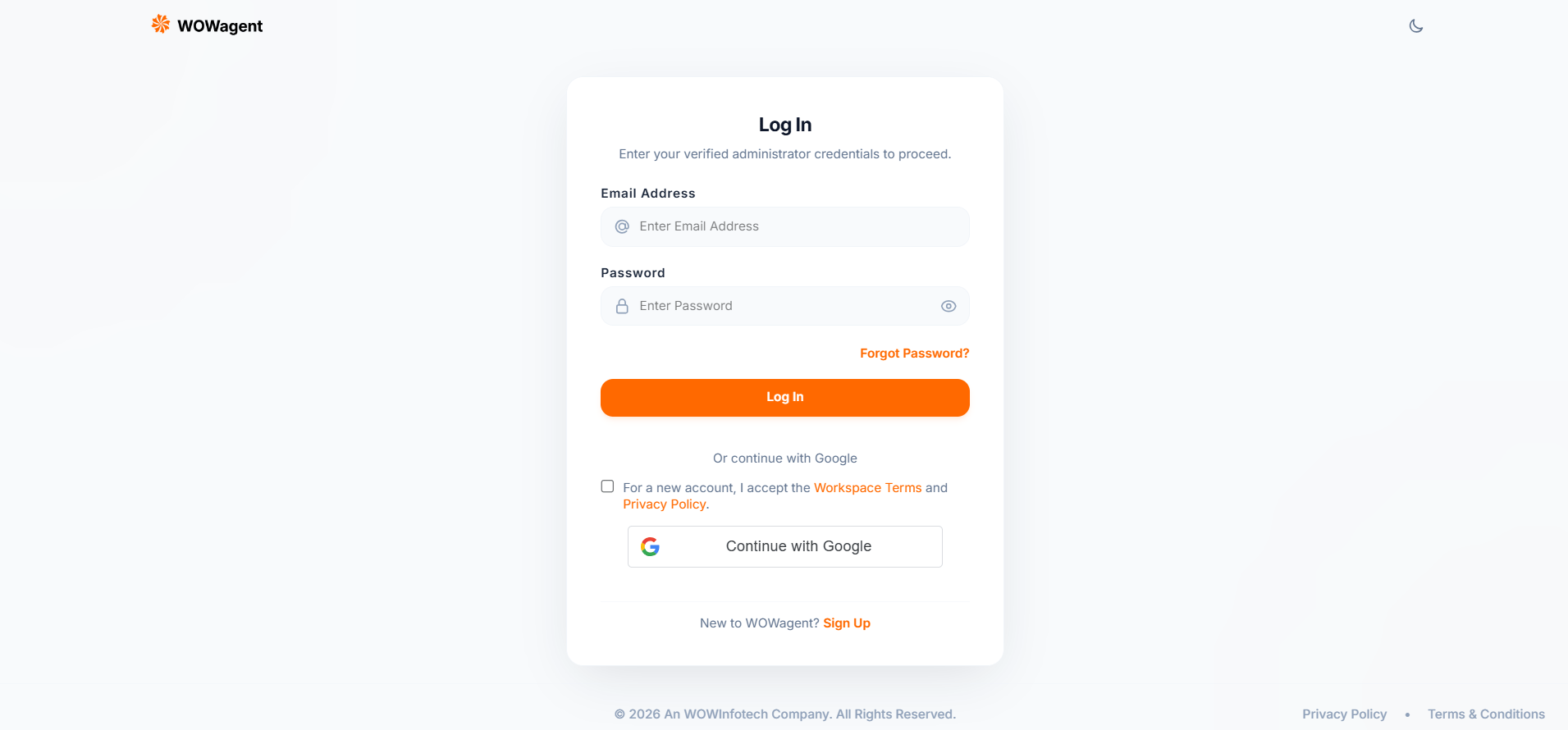
Login is how you enter the WOWagent panel. Without login, Dashboard, Chatbot, Leads, and all other pages stay locked.
 ## Where To Find It
Open:
[https://portal.wowagent.ai/login](https://portal.wowagent.ai/login)
After login, you go to the Dashboard automatically. If it is your first time, you go to Onboard to add a website.
## How To Login With Email
No spaces. Example: [you@example.com](mailto:you@example.com)
Use the show and hide button to check.
Click **Log In**.
Do not double-click.
### Rules
* Email must be in a valid format with `@` and a domain.
* Email cannot contain spaces. Spaces are automatically removed.
* Password cannot contain spaces.
* Password is case sensitive. Check Caps Lock if needed.
## How To Login With Google
Click **Continue with Google**.
Select the same Google email every time.
If the popup is blocked, allow popups for the portal site.
If it is your first time, accept the Workspace Terms and Privacy Policy when asked.
You will go to the Dashboard automatically.
If you change your Google email, you may get an error like `GOOGLE EMAIL CHANGED`. Always use the original email.
If you get an error like `GOOGLE ACCOUNT CONFLICT`, use email login instead and contact support.
## Email Not Verified Case
If you see the message **Please verify your email**:
A popup shows **Verify Your Email** with a **Resend** button.
Click **Resend**.
Check your Inbox, Promotions, Spam, and Junk folders.
Open the email and click the verification link within 24 hours.
Come back to Login and log in again.
The verification link is valid for 24 hours only. After it expires, click **Resend** again.
After successful verification, you return to the Login page and can log in.
If verification fails because the link is invalid, the link has expired, or a server error occurs, request a new verification link.
## Invite Login Case
If a team member invites you with an invitation link:
* If you already have an account, log in first with the invited email, then click **Accept** and join the workspace.
* If you get `INVITATION EMAIL MISMATCH`, log out and log in with the invited email address instead of another email.
* After accepting the invitation, the workspace is selected and you will be taken to the page allowed by your role.
If the invitation shows **unavailable**, **expired**, or **declined**, ask the workspace owner to send a new invitation.
## Forgot Password
On the Login page, click **Forgot Password** and follow the email reset link. The link is valid for 1 hour.
OTP screens in the UI are not used. Only the email reset link is valid. If the link says `Invalid reset token` or `Reset link expired`, request a new reset link.
For the full steps and password rules, see [Forgot Password](/forgot-password).
## Troubleshooting
Check the email, password, spaces, and Caps Lock. Try Forgot Password if you are not sure about the password.
Your login session has ended. Log in again. Do not use the browser back button after logout.
Check your Spam/Junk folder, add the sender to your safe list, and resend the verification email after 1 minute.
Check your internet connection, allow Google Accounts scripts, disable ad blockers, and reload the page.
If this appears during Google login with an invitation, the workspace has reached its member limit. Ask the workspace owner to upgrade the plan or remove a member.
Accept the Terms checkbox and try again.
Create a Support Ticket with your email, a screenshot of the issue, and the time when the issue occurred.
## Next Steps
Set up WOWagent from first login to a live assistant.
Reset your password with an email link.
This documentation is built and hosted on [Mintlify](https://mintlify.com), a developer documentation platform.
## Where To Find It
Open:
[https://portal.wowagent.ai/login](https://portal.wowagent.ai/login)
After login, you go to the Dashboard automatically. If it is your first time, you go to Onboard to add a website.
## How To Login With Email
No spaces. Example: [you@example.com](mailto:you@example.com)
Use the show and hide button to check.
Click **Log In**.
Do not double-click.
### Rules
* Email must be in a valid format with `@` and a domain.
* Email cannot contain spaces. Spaces are automatically removed.
* Password cannot contain spaces.
* Password is case sensitive. Check Caps Lock if needed.
## How To Login With Google
Click **Continue with Google**.
Select the same Google email every time.
If the popup is blocked, allow popups for the portal site.
If it is your first time, accept the Workspace Terms and Privacy Policy when asked.
You will go to the Dashboard automatically.
If you change your Google email, you may get an error like `GOOGLE EMAIL CHANGED`. Always use the original email.
If you get an error like `GOOGLE ACCOUNT CONFLICT`, use email login instead and contact support.
## Email Not Verified Case
If you see the message **Please verify your email**:
A popup shows **Verify Your Email** with a **Resend** button.
Click **Resend**.
Check your Inbox, Promotions, Spam, and Junk folders.
Open the email and click the verification link within 24 hours.
Come back to Login and log in again.
The verification link is valid for 24 hours only. After it expires, click **Resend** again.
After successful verification, you return to the Login page and can log in.
If verification fails because the link is invalid, the link has expired, or a server error occurs, request a new verification link.
## Invite Login Case
If a team member invites you with an invitation link:
* If you already have an account, log in first with the invited email, then click **Accept** and join the workspace.
* If you get `INVITATION EMAIL MISMATCH`, log out and log in with the invited email address instead of another email.
* After accepting the invitation, the workspace is selected and you will be taken to the page allowed by your role.
If the invitation shows **unavailable**, **expired**, or **declined**, ask the workspace owner to send a new invitation.
## Forgot Password
On the Login page, click **Forgot Password** and follow the email reset link. The link is valid for 1 hour.
OTP screens in the UI are not used. Only the email reset link is valid. If the link says `Invalid reset token` or `Reset link expired`, request a new reset link.
For the full steps and password rules, see [Forgot Password](/forgot-password).
## Troubleshooting
Check the email, password, spaces, and Caps Lock. Try Forgot Password if you are not sure about the password.
Your login session has ended. Log in again. Do not use the browser back button after logout.
Check your Spam/Junk folder, add the sender to your safe list, and resend the verification email after 1 minute.
Check your internet connection, allow Google Accounts scripts, disable ad blockers, and reload the page.
If this appears during Google login with an invitation, the workspace has reached its member limit. Ask the workspace owner to upgrade the plan or remove a member.
Accept the Terms checkbox and try again.
Create a Support Ticket with your email, a screenshot of the issue, and the time when the issue occurred.
## Next Steps
Set up WOWagent from first login to a live assistant.
Reset your password with an email link.
This documentation is built and hosted on [Mintlify](https://mintlify.com), a developer documentation platform.