> ## Documentation Index
> Fetch the complete documentation index at: https://docs.wowagent.ai/llms.txt
> Use this file to discover all available pages before exploring further.
# Website Overview: Review Your Website Health Snapshot
> Use Website Overview to check your website score, audit results, crawl status, and key health details, then re-scan after changes to keep data fresh.
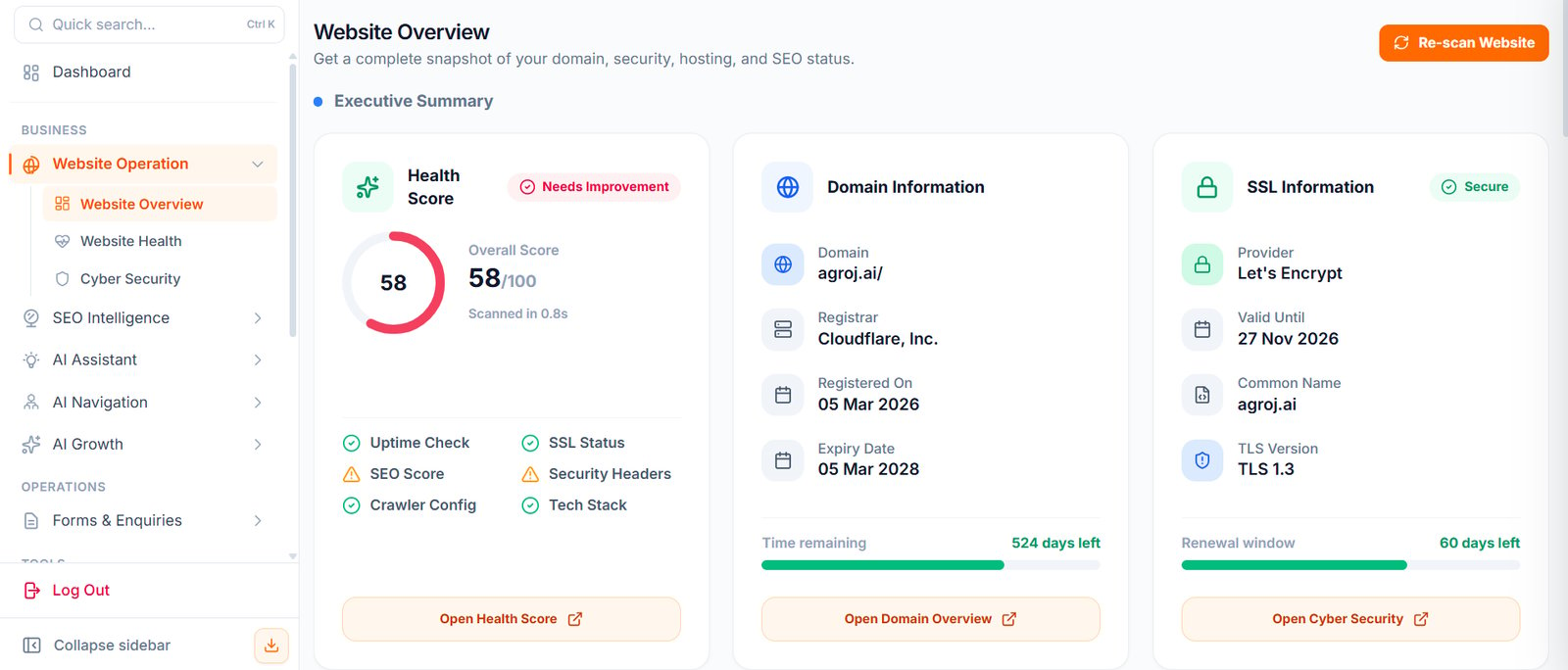
Website Overview is the main place to review your connected website.
It gives you a snapshot of your domain, website health, SEO, SSL, hosting, security, and overall website status.
 ## Where To Find It
Open:
[https://portal.wowagent.ai/website](https://portal.wowagent.ai/website)
Or go to **Website Operation** and click **Website Overview**.
First, select the correct website from the website switcher at the top. If you have 2 or 3 websites, the data changes based on which one you select. If no website is selected, the cards are empty.
## What You Can See Here
The Website Overview page helps you understand:
* Website details
* Domain status
* SSL status
* Hosting information
* SEO condition
* Security condition
* Technology and performance signals
* Website audit results
## Main Cards Explained
You can see cards such as the following.
### Health Score
A single number from 0 to 100, based on the last audit:
* **Green (80 and above):** Good.
* **Yellow (50 to 79):** Needs fixing.
* **Red (below 50):** Urgent.
Click the score to see a breakdown by DNS, SSL, SEO, security, and performance. The score updates only after you click **Re-scan**. It does not update automatically.
### Domain Information
Shows your domain, registrar, creation date, expiry date, and nameservers. If your domain expires in less than 30 days, renew it early. An expired domain stops everything.
### SSL Information
Shows the certificate issuer, its valid-from and valid-to dates, whether it covers www, and whether Force SSL is ON or OFF. If the certificate has expired or does not match your domain, browsers show "Not Secure" and visitors leave.
### Uptime Check
Shows when your website was up or down over the last 30 days, its response time, and the last incident. If downtime is high, contact your hosting provider.
### SEO Score
Shows missing meta titles and descriptions, H1 heading issues, whether a sitemap was found, your robots.txt status, and the number of broken pages.
### Security Headers
Shows whether important security settings on your website (HSTS, CSP, and X-Frame-Options) are present or missing. A missing header is a medium risk, and your hosting provider or a plugin can usually fix it easily.
### Crawler Configuration
Shows whether the audit runs automatically or manually, the last crawl time, the number of pages crawled, blocked pages, and the sitemap URL used. If the last crawl is more than 7 days old and you have changed your website, run **Re-scan**.
### Technology Stack
Shows the detected CMS, analytics tools, server, and JavaScript frameworks. This helps your developer know what to fix.
These cards help you quickly see whether your website needs attention. Green means everything is fine, yellow means fix it this week, and red means fix it today.
## Re-scan Website
Use **Re-scan Website** when you want WOWagent to refresh the website audit.
Click **Re-scan** and wait for the progress bar to finish. The cards then refresh, and you can check the new scores.
This is useful after:
* Updating your website
* Changing hosting
* Updating DNS
* Renewing SSL
* Installing new plugins
* Fixing SEO or security issues
* Changing your website theme or code
* Moving your website to another server
Each re-scan uses credits. If you have no credits left, the scan shows old data.
## What WOWagent Can Scan
WOWagent can check:
* DNS records
* SSL certificate
* Hosting information
* Domain registration details
* Security headers
* SEO health
* Robots.txt and sitemap
* Technology stack
* Website performance
The latest audit is also used for the **PDF Report Download** button. Use the report to share results with a client or developer.
## When To Use Website Overview
Use this page when you want to answer questions like:
* Is my website healthy?
* Is SSL working?
* Is my domain active?
* Are there SEO issues?
* Are there security issues?
* Has my recent website change improved anything?
* Do I need to take action?
* Is my website ready for visitors?
* Should I ask my developer or hosting provider to fix something?
## Recommended Habit
Check Website Overview at least once a week, and run a re-scan after important website changes.
Follow this 5-minute weekly routine:
Confirm that the correct website is selected.
Look at these key indicators first.
Click the card, read the finding, and either apply the fix or send it to your developer.
After the fix, run **Re-scan** to confirm the status is green.
If everything is green, open the Dashboard, Inbox, and SEO pages for growth work.
Do not leave a red item unfixed for more than 48 hours.
If a card shows a warning, open the related section to understand the issue in more detail. For more about each check, see [Health and Security](/website-health-and-security).
## Next Steps
Connect the widget, Google services, and DNS.
Monitor your website's health and security.
This documentation is built and hosted on [Mintlify](https://mintlify.com), a developer documentation platform.
## Where To Find It
Open:
[https://portal.wowagent.ai/website](https://portal.wowagent.ai/website)
Or go to **Website Operation** and click **Website Overview**.
First, select the correct website from the website switcher at the top. If you have 2 or 3 websites, the data changes based on which one you select. If no website is selected, the cards are empty.
## What You Can See Here
The Website Overview page helps you understand:
* Website details
* Domain status
* SSL status
* Hosting information
* SEO condition
* Security condition
* Technology and performance signals
* Website audit results
## Main Cards Explained
You can see cards such as the following.
### Health Score
A single number from 0 to 100, based on the last audit:
* **Green (80 and above):** Good.
* **Yellow (50 to 79):** Needs fixing.
* **Red (below 50):** Urgent.
Click the score to see a breakdown by DNS, SSL, SEO, security, and performance. The score updates only after you click **Re-scan**. It does not update automatically.
### Domain Information
Shows your domain, registrar, creation date, expiry date, and nameservers. If your domain expires in less than 30 days, renew it early. An expired domain stops everything.
### SSL Information
Shows the certificate issuer, its valid-from and valid-to dates, whether it covers www, and whether Force SSL is ON or OFF. If the certificate has expired or does not match your domain, browsers show "Not Secure" and visitors leave.
### Uptime Check
Shows when your website was up or down over the last 30 days, its response time, and the last incident. If downtime is high, contact your hosting provider.
### SEO Score
Shows missing meta titles and descriptions, H1 heading issues, whether a sitemap was found, your robots.txt status, and the number of broken pages.
### Security Headers
Shows whether important security settings on your website (HSTS, CSP, and X-Frame-Options) are present or missing. A missing header is a medium risk, and your hosting provider or a plugin can usually fix it easily.
### Crawler Configuration
Shows whether the audit runs automatically or manually, the last crawl time, the number of pages crawled, blocked pages, and the sitemap URL used. If the last crawl is more than 7 days old and you have changed your website, run **Re-scan**.
### Technology Stack
Shows the detected CMS, analytics tools, server, and JavaScript frameworks. This helps your developer know what to fix.
These cards help you quickly see whether your website needs attention. Green means everything is fine, yellow means fix it this week, and red means fix it today.
## Re-scan Website
Use **Re-scan Website** when you want WOWagent to refresh the website audit.
Click **Re-scan** and wait for the progress bar to finish. The cards then refresh, and you can check the new scores.
This is useful after:
* Updating your website
* Changing hosting
* Updating DNS
* Renewing SSL
* Installing new plugins
* Fixing SEO or security issues
* Changing your website theme or code
* Moving your website to another server
Each re-scan uses credits. If you have no credits left, the scan shows old data.
## What WOWagent Can Scan
WOWagent can check:
* DNS records
* SSL certificate
* Hosting information
* Domain registration details
* Security headers
* SEO health
* Robots.txt and sitemap
* Technology stack
* Website performance
The latest audit is also used for the **PDF Report Download** button. Use the report to share results with a client or developer.
## When To Use Website Overview
Use this page when you want to answer questions like:
* Is my website healthy?
* Is SSL working?
* Is my domain active?
* Are there SEO issues?
* Are there security issues?
* Has my recent website change improved anything?
* Do I need to take action?
* Is my website ready for visitors?
* Should I ask my developer or hosting provider to fix something?
## Recommended Habit
Check Website Overview at least once a week, and run a re-scan after important website changes.
Follow this 5-minute weekly routine:
Confirm that the correct website is selected.
Look at these key indicators first.
Click the card, read the finding, and either apply the fix or send it to your developer.
After the fix, run **Re-scan** to confirm the status is green.
If everything is green, open the Dashboard, Inbox, and SEO pages for growth work.
Do not leave a red item unfixed for more than 48 hours.
If a card shows a warning, open the related section to understand the issue in more detail. For more about each check, see [Health and Security](/website-health-and-security).
## Next Steps
Connect the widget, Google services, and DNS.
Monitor your website's health and security.
This documentation is built and hosted on [Mintlify](https://mintlify.com), a developer documentation platform.