> ## Documentation Index
> Fetch the complete documentation index at: https://docs.wowagent.ai/llms.txt
> Use this file to discover all available pages before exploring further.
# Word Normalization: Control Chat Spelling and Voice Pronunciation
> Set how brand names, product names, and abbreviations appear in chatbot answers and how the voice assistant pronounces them, in English, Hindi, or Marathi.
Word Normalization lets you control how specific words, brand names, product names, abbreviations, and phrases appear in chatbot answers and how the voice assistant pronounces them. For example, your brand can be displayed as `WOWInfotech` in chat while being spoken as "Wow Infotech".
To open it, go to **AI Assistant** > **Word Normalization** in the portal. The page has two tabs: **Word Rules** and **Test Pronunciation**.
## What You Can Do
* Create custom word rules for each website.
* Set a display spelling for chat text and a spoken spelling for voice.
* Add aliases and alternate spellings for the same word.
* Apply a rule to chat text, speech, or both.
* Apply a rule to all languages or to one supported language.
* Preview the chat text and spoken text before you save a rule.
* Generate an optional audio preview.
* Pause or activate rules without deleting them.
Changes take effect automatically. You do not need to refresh or retrain your chatbot after editing a rule.
## Word Rules
The **Word Rules** tab lists all rules configured for the selected website. Use the website selector at the top of the portal to switch websites.
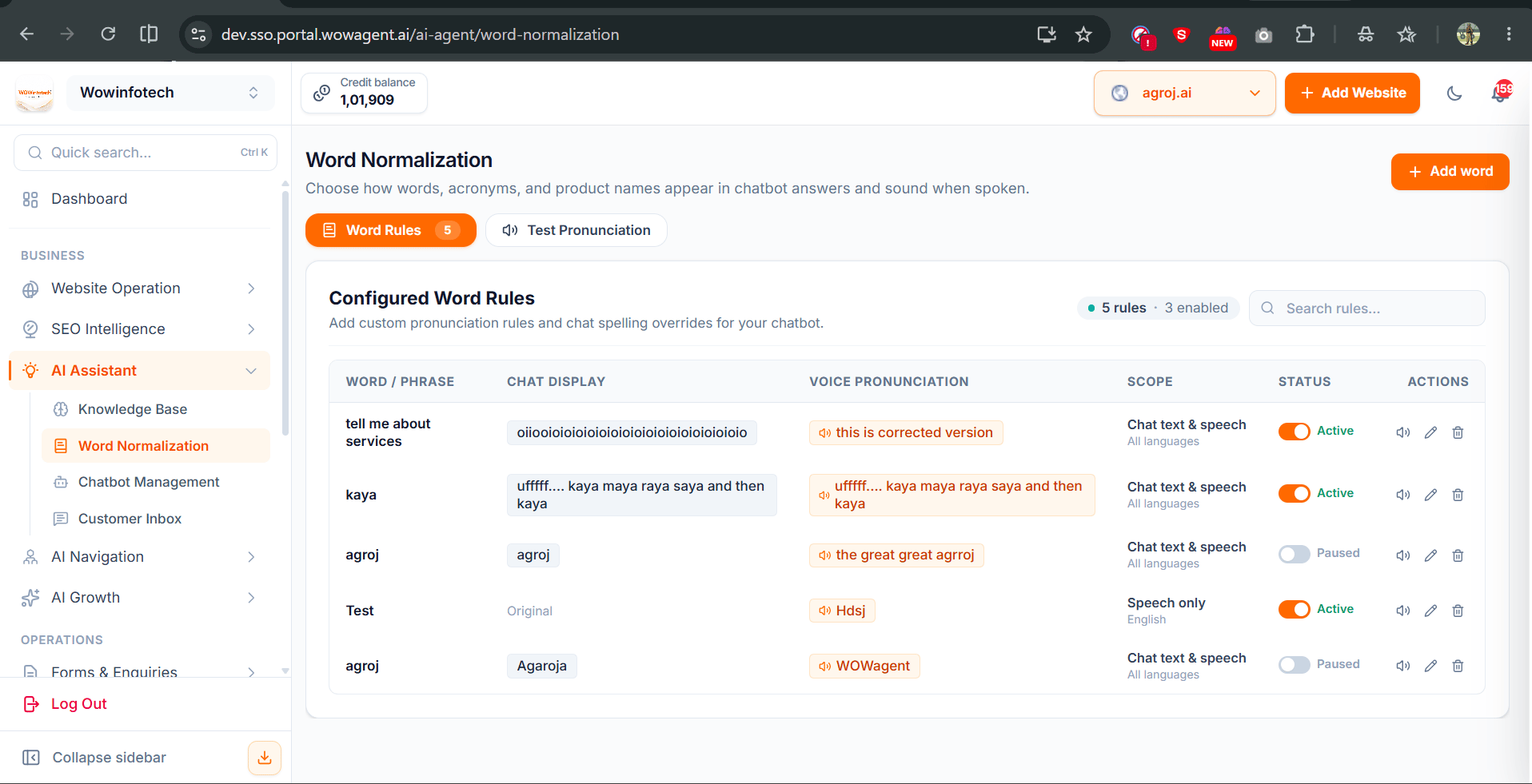 The **Configured Word Rules** table shows these columns:
| Column | What it shows |
| - | - |
| **Word / Phrase** | The original word or phrase the rule looks for. |
| **Chat Display** | How the word appears in chatbot answers. |
| **Voice Pronunciation** | How the voice assistant says the word. |
| **Scope** | Where the rule applies (**Chat text & speech**, **Speech only**, or chat text only) and its language. |
| **Status** | **Active** or **Paused**. |
| **Actions** | Play the pronunciation, edit the rule, or delete it. |
Use **Search rules** to find a rule quickly. The counter above the table shows the total number of rules and how many are enabled.
### Add a Word Rule
Click **Add word** at the top right of the Word Normalization page.
Enter the main word or phrase you want to normalize, for example `wowinfotech`. This field is required.
Add other spellings or forms of the same word, for example `wow infotech` or `WOW-Infotech`. You can add up to 12 aliases.
Choose chat text, speech, or both.
Enter the chat display spelling (for example `WOWInfotech`) and the voice pronunciation (for example `Wow Infotech`). Which fields are required depends on the scope you chose. See [Rule Fields](#rule-fields).
Select **All languages**, **English**, **Hindi**, or **Marathi**.
Save the rule. New rules are active by default.
### Rule Fields
| Field | Description |
| - | - |
| Original word | Main word or phrase to normalize. Required. |
| Aliases | Optional alternate spellings or forms. Maximum 12 aliases. |
| Chat display | Replacement shown in chat answers. Required when the rule applies to chat text or both. |
| Voice pronunciation | Replacement used for voice. Required when the rule applies to speech or both. |
| Scope | Applies the rule to speech, chat text, or both. |
| Language | All languages, English, Hindi, or Marathi. |
| Status | Active or paused. Active by default. |
### Edit, Pause, or Delete a Rule
* To change a rule, click the edit (pencil) icon in the **Actions** column.
* To stop using a rule for a while, switch its **Status** toggle to **Paused**. Paused rules are kept but are not applied, and they do not cause conflicts with other rules.
* To remove a rule permanently, click the delete (bin) icon.
* To hear how a rule sounds, click the speaker icon.
## How Rules Are Applied
Each rule works on the channel you choose:
* **Chat text only**: replaces the word in chatbot answers shown on screen.
* **Speech only**: replaces the word only before the voice assistant speaks. Chat text stays unchanged.
* **Chat text & speech**: shows the display spelling in chat and uses the spoken spelling for voice.
When more than one rule could apply:
* A language-specific rule takes priority over an **All languages** rule.
* The longest matching phrase is processed first. For example, a rule for `WOW Infotech services` is applied before a rule for `WOW`, so the shorter word does not break the longer phrase.
## Test Pronunciation
Use the **Test Pronunciation** tab to check how a sentence will look in chat and sound when spoken, before your visitors see it.
The **Configured Word Rules** table shows these columns:
| Column | What it shows |
| - | - |
| **Word / Phrase** | The original word or phrase the rule looks for. |
| **Chat Display** | How the word appears in chatbot answers. |
| **Voice Pronunciation** | How the voice assistant says the word. |
| **Scope** | Where the rule applies (**Chat text & speech**, **Speech only**, or chat text only) and its language. |
| **Status** | **Active** or **Paused**. |
| **Actions** | Play the pronunciation, edit the rule, or delete it. |
Use **Search rules** to find a rule quickly. The counter above the table shows the total number of rules and how many are enabled.
### Add a Word Rule
Click **Add word** at the top right of the Word Normalization page.
Enter the main word or phrase you want to normalize, for example `wowinfotech`. This field is required.
Add other spellings or forms of the same word, for example `wow infotech` or `WOW-Infotech`. You can add up to 12 aliases.
Choose chat text, speech, or both.
Enter the chat display spelling (for example `WOWInfotech`) and the voice pronunciation (for example `Wow Infotech`). Which fields are required depends on the scope you chose. See [Rule Fields](#rule-fields).
Select **All languages**, **English**, **Hindi**, or **Marathi**.
Save the rule. New rules are active by default.
### Rule Fields
| Field | Description |
| - | - |
| Original word | Main word or phrase to normalize. Required. |
| Aliases | Optional alternate spellings or forms. Maximum 12 aliases. |
| Chat display | Replacement shown in chat answers. Required when the rule applies to chat text or both. |
| Voice pronunciation | Replacement used for voice. Required when the rule applies to speech or both. |
| Scope | Applies the rule to speech, chat text, or both. |
| Language | All languages, English, Hindi, or Marathi. |
| Status | Active or paused. Active by default. |
### Edit, Pause, or Delete a Rule
* To change a rule, click the edit (pencil) icon in the **Actions** column.
* To stop using a rule for a while, switch its **Status** toggle to **Paused**. Paused rules are kept but are not applied, and they do not cause conflicts with other rules.
* To remove a rule permanently, click the delete (bin) icon.
* To hear how a rule sounds, click the speaker icon.
## How Rules Are Applied
Each rule works on the channel you choose:
* **Chat text only**: replaces the word in chatbot answers shown on screen.
* **Speech only**: replaces the word only before the voice assistant speaks. Chat text stays unchanged.
* **Chat text & speech**: shows the display spelling in chat and uses the spoken spelling for voice.
When more than one rule could apply:
* A language-specific rule takes priority over an **All languages** rule.
* The longest matching phrase is processed first. For example, a rule for `WOW Infotech services` is applied before a rule for `WOW`, so the shorter word does not break the longer phrase.
## Test Pronunciation
Use the **Test Pronunciation** tab to check how a sentence will look in chat and sound when spoken, before your visitors see it.
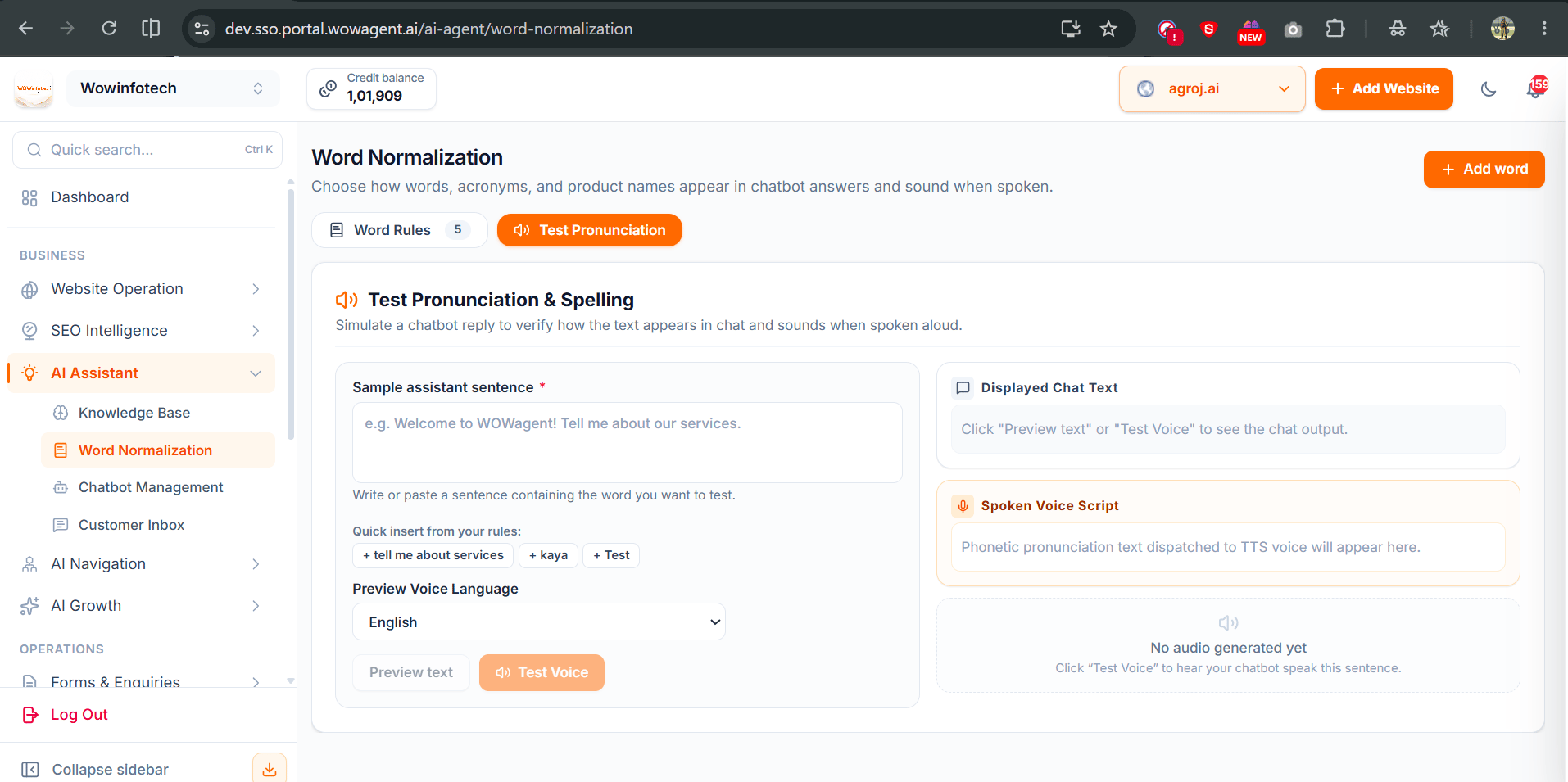 Click the **Test Pronunciation** tab.
In **Sample assistant sentence**, type or paste a sentence that contains the word you want to test. You can also click a word under **Quick insert from your rules** to add it.
Choose a language in **Preview Voice Language**.
Click **Preview text**. **Displayed Chat Text** shows how the answer appears in chat, and **Spoken Voice Script** shows the text sent to the voice.
Click **Test Voice** to generate and play an audio sample.
Testing never saves a rule. While you add or edit a rule, you can also preview your unsaved changes before you save them.
The sample sentence must:
* Not be empty.
* Be 900 characters or fewer for a text preview.
* Be in English, Hindi, or Marathi.
### Audio Preview and Credits
When you click **Test Voice**, WOWagent:
* Uses your website's voice settings and the voice for the selected language.
* Supports samples up to 2,500 characters.
* Checks your voice credit balance before generating audio.
* Deducts credits only if the audio is generated successfully.
See [Plans, Credits, and Limits](/plans-credits-and-limits) to check or top up credits.
## Supported Languages
* English
* Hindi
* Marathi
* All languages
Regional variants such as English (India), Hindi (India), and Marathi (India) are handled automatically.
## Protected Content
Word rules never change the following content, so links and technical text keep working:
* URLs
* Email addresses
* Domain names
* Inline code and code blocks
* Link destinations
* HTML tags
The visible text of a link can still be normalized, but the address it points to stays unchanged.
## Rules and Limits
Every rule is checked before it is saved:
* All required fields must be filled in.
* Only plain text is allowed.
* Words, aliases, and replacements can be up to 120 characters each.
* Each rule can have up to 12 aliases.
* The original word or alias must contain at least one letter.
* Only supported languages can be selected.
* The display and spoken spellings must match the selected scope.
Each website can have up to **200** word rules.
## Conflicts Between Rules
Two active rules cannot use the same term for the same language and channel. WOWagent checks for duplicates across:
* Original words
* Aliases
* Display spellings used by speech rules
You can use the same word in rules for different languages. For example, an English rule and a Marathi rule can both use `agroj` with different replacements.
If you see a conflict error, pause or edit the existing rule that uses the same word, then save your new rule again.
## Next Steps
Configure your AI assistant's voice and behavior.
Train your assistant with your business data.
This documentation is built and hosted on [Mintlify](https://mintlify.com), a developer documentation platform.
Click the **Test Pronunciation** tab.
In **Sample assistant sentence**, type or paste a sentence that contains the word you want to test. You can also click a word under **Quick insert from your rules** to add it.
Choose a language in **Preview Voice Language**.
Click **Preview text**. **Displayed Chat Text** shows how the answer appears in chat, and **Spoken Voice Script** shows the text sent to the voice.
Click **Test Voice** to generate and play an audio sample.
Testing never saves a rule. While you add or edit a rule, you can also preview your unsaved changes before you save them.
The sample sentence must:
* Not be empty.
* Be 900 characters or fewer for a text preview.
* Be in English, Hindi, or Marathi.
### Audio Preview and Credits
When you click **Test Voice**, WOWagent:
* Uses your website's voice settings and the voice for the selected language.
* Supports samples up to 2,500 characters.
* Checks your voice credit balance before generating audio.
* Deducts credits only if the audio is generated successfully.
See [Plans, Credits, and Limits](/plans-credits-and-limits) to check or top up credits.
## Supported Languages
* English
* Hindi
* Marathi
* All languages
Regional variants such as English (India), Hindi (India), and Marathi (India) are handled automatically.
## Protected Content
Word rules never change the following content, so links and technical text keep working:
* URLs
* Email addresses
* Domain names
* Inline code and code blocks
* Link destinations
* HTML tags
The visible text of a link can still be normalized, but the address it points to stays unchanged.
## Rules and Limits
Every rule is checked before it is saved:
* All required fields must be filled in.
* Only plain text is allowed.
* Words, aliases, and replacements can be up to 120 characters each.
* Each rule can have up to 12 aliases.
* The original word or alias must contain at least one letter.
* Only supported languages can be selected.
* The display and spoken spellings must match the selected scope.
Each website can have up to **200** word rules.
## Conflicts Between Rules
Two active rules cannot use the same term for the same language and channel. WOWagent checks for duplicates across:
* Original words
* Aliases
* Display spellings used by speech rules
You can use the same word in rules for different languages. For example, an English rule and a Marathi rule can both use `agroj` with different replacements.
If you see a conflict error, pause or edit the existing rule that uses the same word, then save your new rule again.
## Next Steps
Configure your AI assistant's voice and behavior.
Train your assistant with your business data.
This documentation is built and hosted on [Mintlify](https://mintlify.com), a developer documentation platform.