

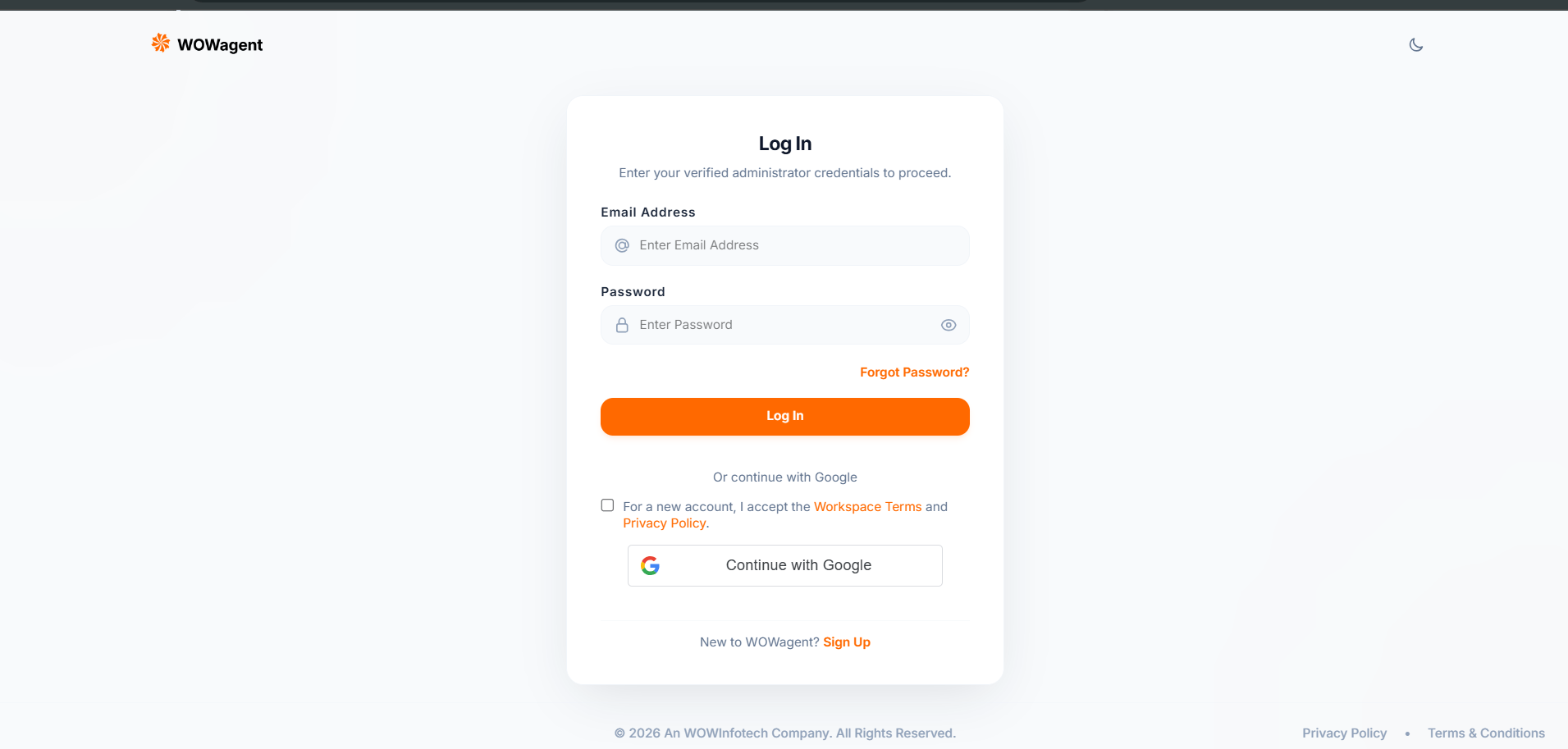
Where To Find It
Open: https://portal.wowagent.ai/login After login you go to Dashboard automatically. If first time, you go to Onboard to add website.How To Login With Email
- Enter Email Address. No spaces. Example: you@example.com
- Enter Password. Use show and hide button to check.
- Click Log In.
- Wait 2 to 3 seconds. Do not double click.
- Email must be valid format with @ and domain.
- Email cannot contain spaces. Spaces are auto removed.
- Password cannot contain spaces.
- Password is case sensitive. Check caps lock.
How To Login With Google
- Click Continue with Google.
- Select same Google email every time.
- Allow popup. If popup blocked, allow popups for portal site.
- If first time, accept Workspace Terms and Privacy Policy when asked.
- You go to Dashboard automatically.
Email Not Verified Case
If you see message Please verify your email:- Popup shows Verify Your Email with Resend button.
- Click Resend.
- Check Inbox plus Promotions plus Spam plus Junk folders.
- Open mail and click verify link within 24 hours.
- Come back to Login and login again.
Invite Login Case
If team invited you with link like invite accept with token:- If you already have account: Login first with invited email only, then click Accept and join workspace.
- If email mismatch like INVITATION EMAIL MISMATCH: logout, then login with invited email address, not other email.
- After accept, workspace is selected and you go to allowed page by role.
Forgot Password
- On Login page click Forgot Password.
- Enter registered email only.
- Click Submit.
- You see Email Sent popup. Check Inbox plus Spam.
- Open mail and click reset link within 1 hour.
- Enter New Password plus Confirm. Must match. Must meet password rules: min 8 chars, with Upper plus Lower plus Number plus Special char.
- Submit, then see Password Reset Successfully, then go to Login.
Troubleshooting
- Invalid email or password: wrong combo. Check spaces, caps, correct email. Try forgot password if unsure.
- Session expired or 401: token cleared. Login again. Do not use back button after logout.
- Verify modal loop: check spam folder, add sender to safe list, resend after 1 min.
- Google button loading long or could not load: check internet, allow accounts google script, disable adblock, reload.
- PLAN SEAT LIMIT EXCEEDED on Google login with invite: workspace full. Ask owner to upgrade or remove member.
- LEGAL ACCEPTANCE REQUIRED: accept Terms checkbox and retry.
- Still stuck: create Support Ticket with email plus screenshot plus time.