

Where To Find It
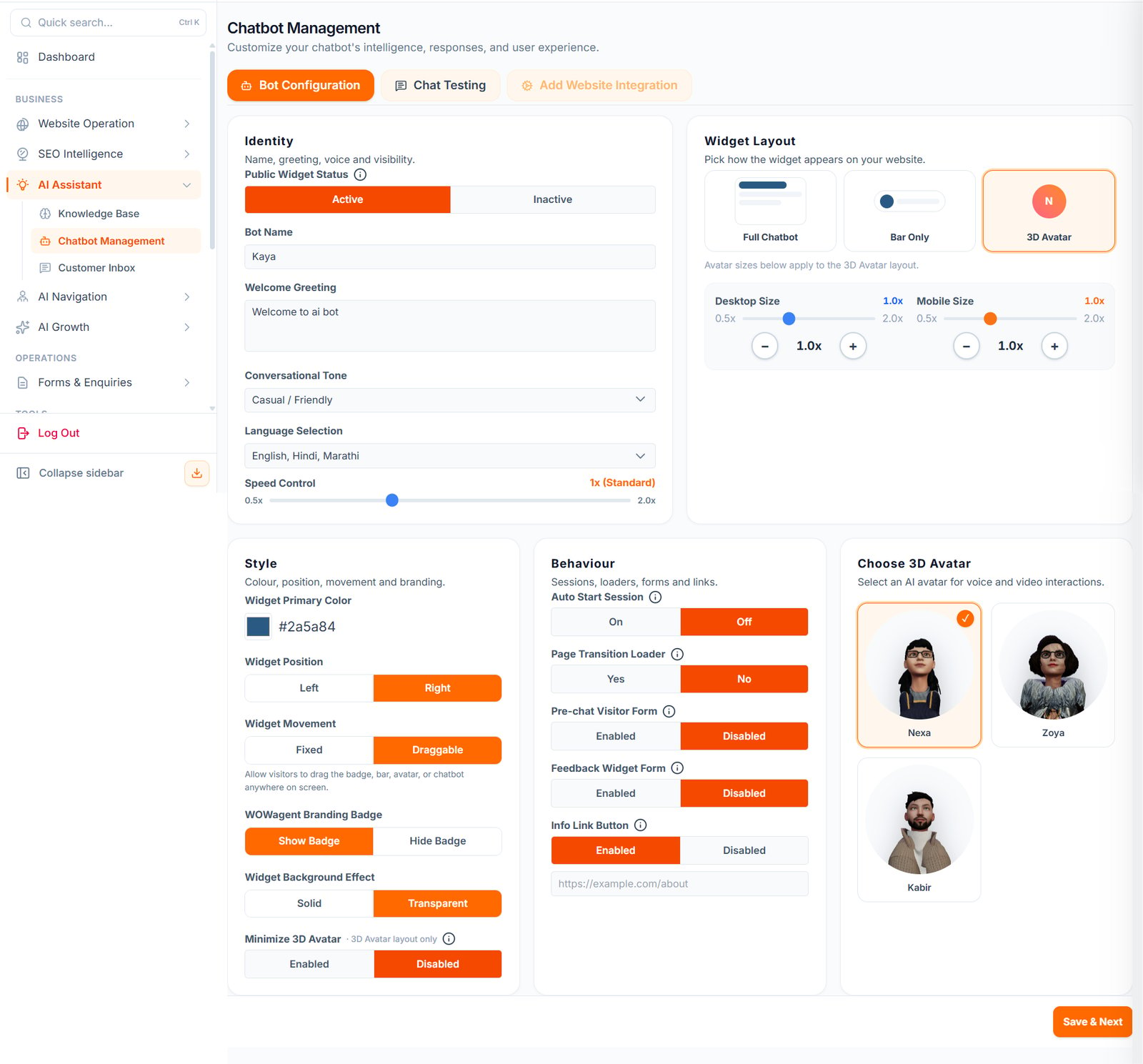
Open: https://portal.wowagent.ai/ai-agent Or go to: AI Assistant > Chatbot ManagementWhat You Can Manage
In Chatbot Management, you may manage:- Assistant name
- Assistant behavior
- Chat widget settings
- Widget appearance
- Avatar or voice options, if enabled
- Deployment status
- Visitor interaction settings
- Lead capture behavior
Main Configuration Areas
Bot Configuration
Use Bot Configuration to set up the main chatbot behavior. This may include:- Public widget status
- Bot name
- Welcome greeting
- Conversational tone
- Language selection
- Speed control
Widget Layout
Use Widget Layout to choose how the chatbot appears on your website. Options may include:- Full chatbot
- Bar only
- 3D avatar
Style
Use Style settings to control how the widget looks. You may configure:- Primary widget color
- Widget position
- Widget movement
- Branding badge
- Background effect
- 3D avatar behavior
Behaviour
Use Behaviour settings to control how the assistant acts during visitor sessions. You may configure:- Auto start session
- Page transition loader
- Pre-chat visitor form
- Feedback widget form
- Info link button
Avatar
If available, choose a 3D avatar for voice and video interactions.Before You Configure Chatbot
Before changing chatbot settings, complete your Knowledge Base first. Your assistant gives better answers when it has accurate business information. At minimum, add:- Business profile
- Business hours
- Products and services
- FAQs
- Website pages
- Uploaded documents
- Bot boundaries
Widget Setup
The chatbot appears on your website through a widget. To use it properly:- Open Integration Center.
- Follow the widget installation instructions.
- Add the widget script to your website.
- Verify the widget from WOWagent.
- Open your website and confirm the assistant appears.
Test The Assistant
After setup, test the assistant like a real visitor. Ask questions such as:- What services do you offer?
- What are your prices?
- Where are you located?
- What are your working hours?
- How can I contact support?
- Can I book a demo?
- Can I speak to a human?
Improve Bad Answers
If the assistant gives a wrong or incomplete answer, update the Knowledge Base. Usually, you should improve:- FAQs
- Products and services
- Business profile
- Uploaded documents
- Bot boundaries
Recommended Checklist
Before going live, confirm:- Widget is installed
- Widget is visible on the website
- Assistant answers common questions correctly
- Contact details are correct
- Business hours are correct
- Lead capture works
- Conversations appear in Customer Inbox
- Enquiries appear in Customer Enquiries